Discover NFC: Duilink in one tap

You can program an NFC tag yourself with your Duilink: on Android Chrome you can write directly from your Duilink area, or you can use a dedicated NFC app. Use a tag you already have, buy an NTAG213/215/216 tag, and program it directly from your page.

NFC ideas for your brand

These are examples of branded supports you can create. Duilink does not lock you into accessories: you get the link, QR and files, then you can print or customize them wherever you prefer.
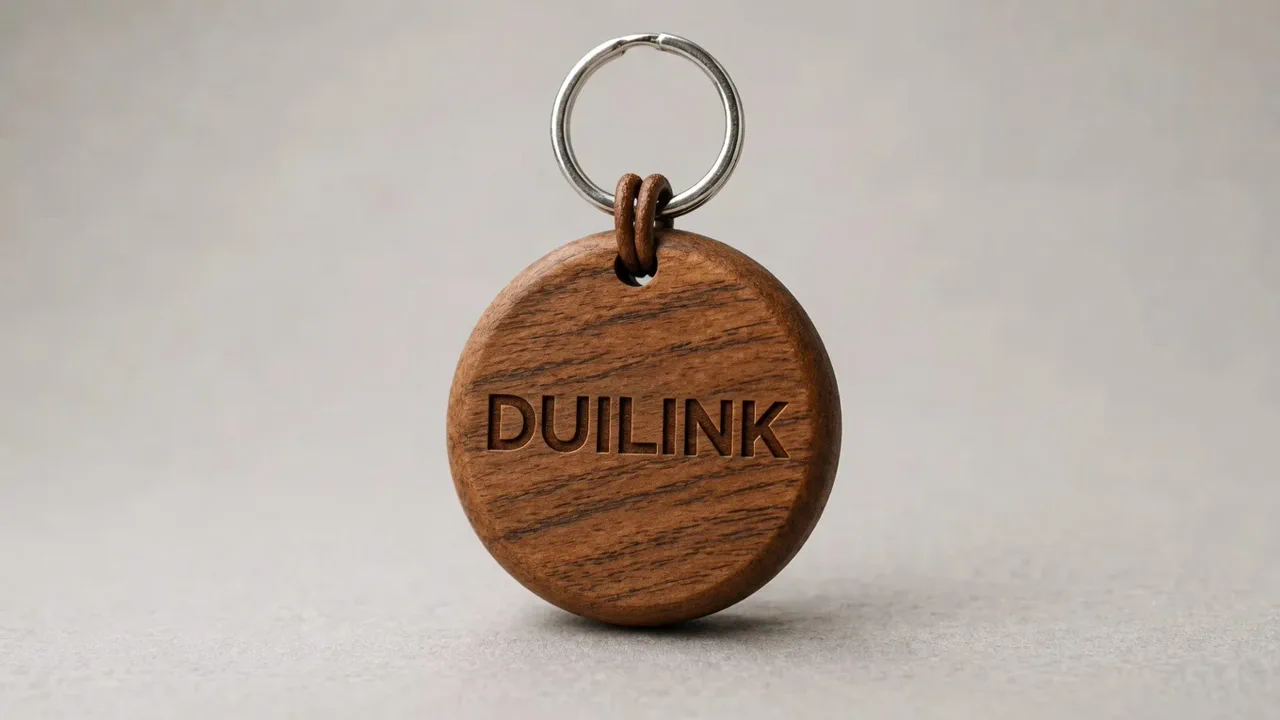
NFC ideas for your brand
  • keychains, rigid NFC cards, and bracelets
  • pens, pendants, charms, and promotional gadgets
  • calendars, notebooks, and stationery with integrated NFC tag
  • business cards with NFC stickers you can program from your Duilink page
  • link remains updateable from your Duilink area
  • instant opening on NFC-compatible phones

Users who pay registration after the free phase will also receive surprise NFC tags, but Duilink works with any compatible tag.

Quick guide: write your Duilink to NFC

  1. Create your Duilink page and copy your personal URL.
  2. If you use Android with Chrome, open My Duilink and tap the Write to NFC button or the NFC icon on the public page.
  3. Hold the NFC tag near your phone and confirm the write when the browser asks.
  4. After confirmation, move the tag away: Android may read it immediately and open your personal page.
  5. If you use iPhone, the easiest option is to send the Duilink to a friend with a compatible Android phone and let them write the tag from the page using the NFC icon.
  6. If your browser does not support direct writing, use an NFC app and write the link as a URL/URI record.
  7. Test the tag: it should open the page without requiring special apps.
Write to NFC

Button in your Duilink area after saving the MyPage.

NFC icon on the public Duilink page: tap it and hold the tag close.

Which NFC tags to use

  • NTAG213: enough for a Duilink URL.
  • NTAG215 or NTAG216: compatible but not required; a smaller memory tag is enough for a Duilink URL.

Buy your tag wherever you prefer: search for "NTAG" on search engines. You can program it directly from your Duilink page when using compatible Android Chrome.

How to test

  • On iPhone, place the top edge of the phone near the tag.
  • On Android, try the center or upper back area; it depends on the model.

Where to use it

  • keychain
  • badge or lanyard
  • reception desk
  • booth or trade show
  • printed business card

If it does not work

  • Check that NFC is enabled on Android.
  • For direct writing, use Android with an updated Chrome browser.
  • On iPhone/iPad, NFC writing from the browser is not supported: ask someone with compatible Android to write the tag, or use NFC Tools or another dedicated app.
  • Rewrite the tag as URL/URI, not plain text.
  • Verify the tag is not already locked.
  • Avoid metal surfaces if the tag is not anti-metal.